DevWorkspace Pro 2.0: AI Sessions for Every Project
One workspace for every project on your machine, with your AI coding agents next to your code
Hi, I'm Damilola. I build DevWorkspace Pro, a desktop app for developers.
These are the 2.0 release notes. The original post has a screenshot for each feature. Here, a short line in italics says what each one shows.
2.0 is the biggest release the app has had. Version 2.0.0 went out on October 2, 2026, and 2.0.1 followed on October 13 with the stack and security work. This post covers both, because together they change what the app is for.
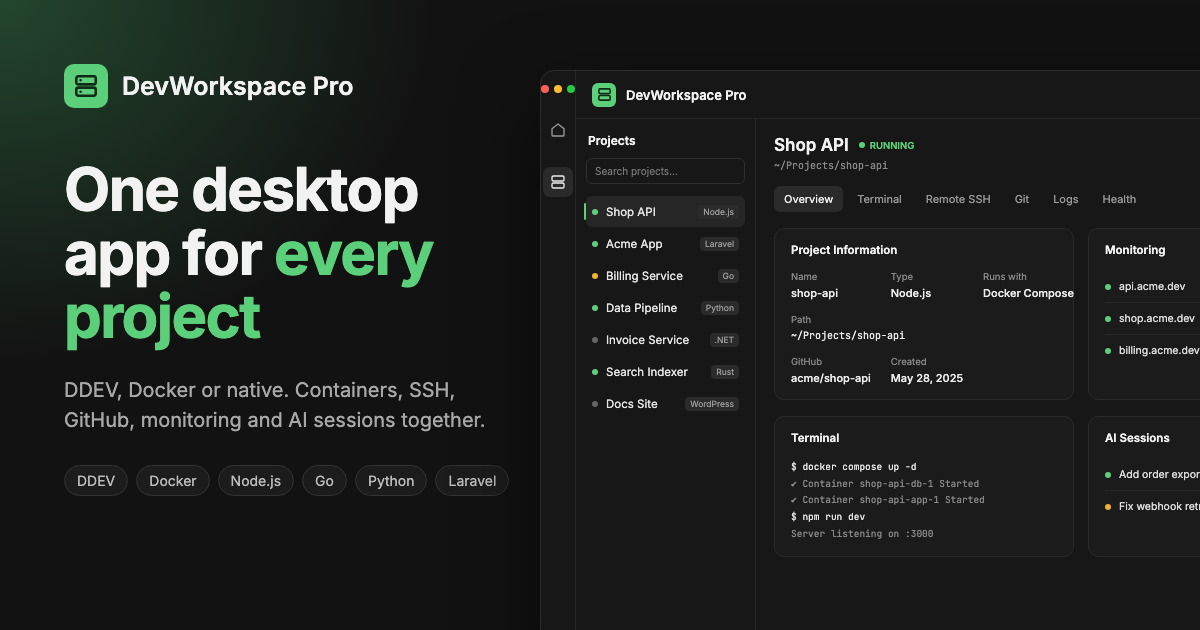
The short version: DevWorkspace Pro is now one workspace for every project on your machine. Any folder works, any stack, and your AI coding agents live right next to your code.
In short
- Start Claude Code, Codex or OpenCode in any project with
⌘+J, and resume unfinished sessions after a restart. - Jump between projects with
⌘+KandCtrl+Tab. - Browse, search and edit code in the new Files tab. Review and commit in Git Changes.
- Every project gets the core features. Known stacks and DDEV, Sail or Docker Compose projects get extras.
- Scan dependencies for known vulnerabilities and send the fix to your AI agent.
- Focus Pad now talks to AI agents over MCP. Eye Care and Keep Awake look after you and your machine.
AI sessions, one shortcut away
Press ⌘+J (Ctrl+J on Windows and Linux) on a project. The AI launcher opens. Type the task, pick claude, codex or opencode, adjust the flags if you need to, and press Enter. The agent starts in the project folder, in its own terminal window.
Type a task, press Enter, and the agent starts in the project folder.
A few details I care about:
- The first line of your prompt becomes the session title, so you can tell sessions apart later.
- With an empty prompt, you get a blank session with a numbered name.
- If your flags resume an earlier session, for example
--resume, the button changes to Resume session and your message goes into that session.
You can also start a session outside any project. It runs in a folder you choose in Preferences.
Sessions that survive a restart
An update or a reboot no longer costs you a conversation. When you quit the app during an AI session, DevWorkspace Pro keeps a small record: the tool, its session ID, the folder, the arguments and the task title. It does not save your prompt.
When you open the app again, the status bar shows a button such as 2 to resume. Click it, and you see every unfinished session grouped by project. Resume one, or click Resume all.
Unfinished sessions, grouped by project, with the days left before each one expires.
Unfinished sessions stay for 90 days by default. You can change that in Preferences. Terminal tabs come back too, with their folder and recent output, and saved terminal output is kept for 60 days. The resume guide has the full story.
Move between projects without the mouse
Press ⌘+K to open the project switcher. Recent projects are at the top. Type a few letters, press Enter to open a project, or press Tab to start an AI session in it straight away.
Type to filter, Enter to open, Tab to start an AI session in the selected project.
Ctrl+Tab cycles through recent projects, like app switching in your OS. Each project also keeps its last tab, so you land where you left off.
Files and project search
The new Files tab is a light editor for any project. File names in the tree use Git colors, so new and changed files stand out. PHP files get IntelliSense.
The file tree with Git colors, and PHP IntelliSense in the editor.
Two shortcuts work on any project tab:
| Shortcut | What it does |
|---|---|
⌘+P |
Go to file. Fuzzy search, so uc finds UserController.php |
⌘+Shift+F |
Search in files, with match case, whole word and regular expressions |
Large folders such as vendor and node_modules load only when you open them, so big projects stay fast.
Git Changes
The Git tab now has Changes and History. Read every diff, select files and commit. History shows the commits on the current branch with the diff of each one.
Review each diff, select files and commit.
The number of added and removed lines shows on the Git tab, in the projects sidebar and on the dashboard cards, and it updates as you work. Issues and Actions sit next to it in the same tab, and Send to AI hands an issue or a failed run to your agent.
Send a GitHub issue to your AI agent, with your own notes added at the end.
Every project gets the core features
Before 2.0, DDEV projects got the most attention. Now all projects show in one list, with one type badge each. Any folder works: Laravel, Go, Python, Flutter, Ruby, a docs repo, anything. Every project gets Files, Git, GitHub issues and Actions, AI sessions, the terminal and Focus Pad.
One list for every project, whatever the stack or runtime.
Some projects get extras on top:
- Known stacks. The app detects the stack from the files in the folder, for example
artisan,package.json,go.mod,Cargo.tomlor a.csproj. A known stack such as Laravel, WordPress, Node.js or .NET adds recipes, the dependency security scan and, for PHP apps, the Scratchpad. - Runtimes. DDEV projects get databases, add-ons, logs and Xdebug. Docker Compose and Laravel Sail projects get a Services card to start, stop, restart and read logs, without a move to DDEV.
New Project is now stack-first. Step one asks what you are building, step two asks how you run it: DDEV, Sail, Docker Compose, Local PHP, a package manager, the .NET CLI, Python, Go, Cargo or your own command. The app checks that the tools are installed before it starts.
The Run card on the Overview tab shows that run command with a Run button, plus the scripts the project already defines in package.json, composer.json, a Makefile, go.mod, Cargo.toml or a .NET solution.
The saved run command, the project's own scripts, and Compose services in one place.
If you use a stack I have not covered, the stack pages show what works today.
Dependency security scan
The Health › Security tab checks your lockfiles for known vulnerabilities: Composer, npm, pnpm, Yarn, Bun and NuGet. It sends only package names and versions to Packagist, the npm registry and OSV.dev.
Findings by severity, with one-click upgrades and Send to AI for the hard ones.
Click Upgrade to fix one package, or select several. Major upgrades can break things, so the app warns you and offers Send to AI instead. Your agent gets the package, the versions and the advisory, and does the careful part. Background checks run daily by default and notify you about new findings.
Focus Pad, now with MCP
Focus Pad is the always-on-top task list. In 2.0 it gained collections, priorities, colors, deadlines and Pesky, a reminder that nudges you until a task is done.
Pesky keeps nudging until the urgent task is done.
The new Focus Pad MCP server lets an AI agent read and update your tasks. Ask Claude Code to turn review comments into tasks, and they show up in Focus Pad with priorities and reminders. The server is off by default and listens only on your own computer. See the Focus Pad MCP guide.
Eye Care and Keep Awake
Two small utilities, for you and your machine.
Eye Care reminds you to rest your eyes with the 20-20-20-20 rule: every 20 minutes, look at something 20 feet away for 20 seconds and blink 20 times. The screen dims during the break, and your work keeps running underneath.
The break dims the screen while the build keeps going.
Keep Awake stops your computer from sleeping during long builds, downloads or AI sessions. Click the cup icon in the header and pick a duration, from 15 minutes to Until off.
How to update
DevWorkspace Pro checks for updates and downloads them in the background. When the download is done, click Restart now, or click Later and the update installs the next time you quit.
To check now, use Check for Update… in the app menu on macOS, or the Tools menu on Windows and Linux. New to the app? Start with the getting started guide.
What is next
I will keep polishing what shipped in 2.0, and I will add more stack depth when users ask for it. If something in your workflow is missing, tell me. That is what shapes the next release.
Learn more
- Stack pages: what works for Laravel, Node.js, .NET, Python, Go, Rust, Flutter and more.
- Guides: AI agents, focus and eye care, step by step.
- Comparisons: how DevWorkspace Pro fits next to the tools you already use.
- Documentation: every feature in detail.
Originally published on devworkspacepro.com.
Comments
Join the discussionNo comments yet. Be the first to comment.